
- Help Center
- Products
- Attaching a Product
-
Kangaroo Apps
-
Email/SMS/Push Marketing
-
Workflows
-
Kangaroo Business Portal App
-
Points
-
Redeeming points
-
Offers
-
Tiers
-
Referrals
-
Branding
-
Release Notes
-
Rules
-
Customers
-
Gamification
-
Gift Cards
-
Analytics
-
Branches
-
Kiosk
-
Frequent Buyers Program
-
Surveys
-
Merchant App
-
White Label App
-
Business portal
-
Subscription
-
Members App
-
New Business Portal
-
Business Profile
-
Import Transaction
-
One-Pagers
-
FAQ
- FAQ- Lightspeed R Series
- FAQ- Shopify POS
- FAQ- Shopify ECOM
- FAQ- Lightspeed ECOM
- FAQ - WooCommerce
- FAQ - Standalone
- FAQ - BigCommerce
- FAQ - Magento
- Kangaroo Booking
- FAQ-Heartland
- FAQ - Judge.me
- FAQ- Lightspeed X Series
- FAQ- Lightspeed K Series
- FAQ- Lightspeed L Series
- FAQ - Lightspeed E Series (Ecwid)
- FAQ - MindBody POS
-
API
-
Kangaroo Reviews
-
Products
How to create a Free Product offer /redemption in Lightspeed Retail?
In order to Attach a Free Product to an Offer/Redemption in Lightspeed Retail, you should follow the steps below:
- First, you click on Offers on the left under the main menu or Redemptions depending on which you want to create.


- Then to start creating the offer, press on Create an Offer.
- While creating the offer or redemption, you add the reward type as Free Product Integration.
- Next, scroll down to the optional parameters and press on Products
- Kindly note that you should be choosing from the category/product of the integration you are using, AKA Lightspeed Retail
- If the product/category is not showing directly on the screen, enter the name as it is from the Lightspeed retail (in the inventory) or the ID we can find in the details of the item in the search bar below.

- Go to the Inventory within the Lightspeed Retail account under the main bar.
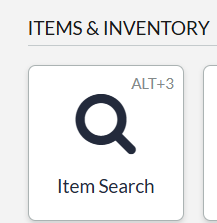
- You press on the Item Search under the Items & Inventory to search for the item name/ID.
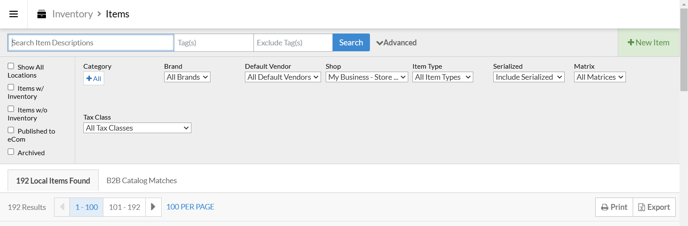
- Then you can search through the catalog within the Lightspeed Retail system
- And in case you wanted to get the ID, you click on the item itself. It takes you to a new tab that has all the details of the chosen item. Under IDs, the system ID should be copy pasted.

- Once you select the item back in the Kangaroo Business Portal in the search bar, press Done on the right below and proceed with the offer/redemption you are creating and save.