![Kangaroo-Rewards-App-Icon-BLUE-Oct-01-2025-07-47-23-2450-PM.png]](https://support.kangaroorewards.com/hs-fs/hubfs/Kangaroo-Rewards-App-Icon-BLUE-Oct-01-2025-07-47-23-2450-PM.png?height=40&name=Kangaroo-Rewards-App-Icon-BLUE-Oct-01-2025-07-47-23-2450-PM.png)
This feature is ideal for loyalty programs where purchases happen in-store or at locations where a direct POS integration is not available.
How to enable it
- Go to Settings → Apps & Integrations → Receipt Scanning and toggle on Enable receipt scanning.
- Once enabled, the scan option immediately becomes available to customers in the loyalty White label app and web experience. 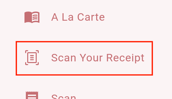
- Toggling it off removes the option for customers and prevents any new submissions from being processed.
What happens after a customer scans a receipt
Once submitted, the receipt goes through three checks in sequence: it is compared against your submission limits (Receipt age limit limit and daily/weekly caps), matched against your eligible vendor list (if configured), and then evaluated against any uploaded receipt templates (if template matching is turned on). Depending on your Approval Mode setting, the receipt is then either approved automatically, flagged for human review, or rejected.