![Kangaroo-Rewards-App-Icon-BLUE-Oct-01-2025-07-47-23-2450-PM.png]](https://support.kangaroorewards.com/hs-fs/hubfs/Kangaroo-Rewards-App-Icon-BLUE-Oct-01-2025-07-47-23-2450-PM.png?height=40&name=Kangaroo-Rewards-App-Icon-BLUE-Oct-01-2025-07-47-23-2450-PM.png)
If this option is not available in your portal, reach out to the support team through live chat or to support@kangaroorewards.com
Setting up Payment Settings:
- Go to Kangaroo Rewards Business Portal.
- Go to the Settings section.
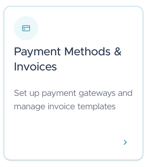
- Go to Payment Methods & Invoices
- Add your credit card information by clicking on the plus sign
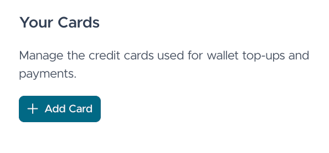
- It is possible to add multiple cards, although it is necessary to designate one as the default.
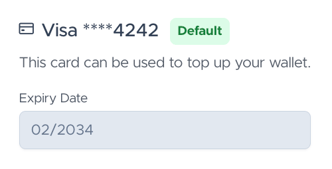
- Once the card added , go to the Wallet section
- The Total Amount and the Top-Up Value must match, It reflects the number of credits available in the business portal. Additionally, a Threshold Amount should be set, which triggers an automatic recharge when the card balance falls below this amount. For instance, if the top-up value is 16$ and a customer purchases vouchers worth 9$, leaving a balance of 7$, the card will be automatically recharged to reach the 16$ threshold.
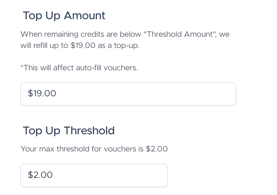
- Don't forget to click on Save.
Creating Amazon Voucher: - Click on Redemptions - Redemptions Rules.
- Click on Create A Redemption.
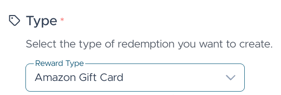
- In Reward Type make sure to select Amazon Gift Card
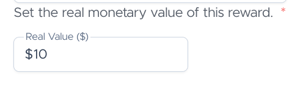
- Add the Real Value for the Amazon voucher (Make sure it does not exceed the threshold amount in payments).
- Select your Audience.
- Choose the start and end date of the reward and the amount of points required to redeem it.
- Simply proceed with the redemption process as you would with any other reward, and remember to save your changes.
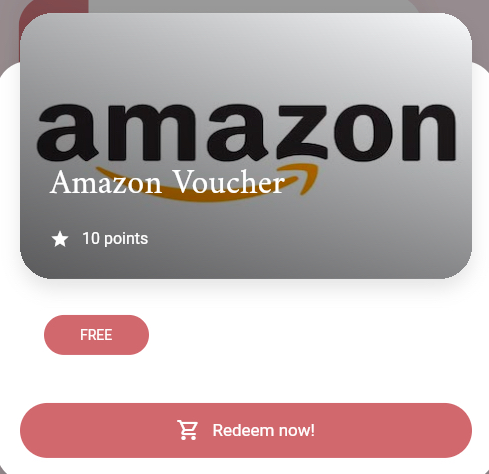
- To redeem it, log into the White label app and go to the Rewards section.
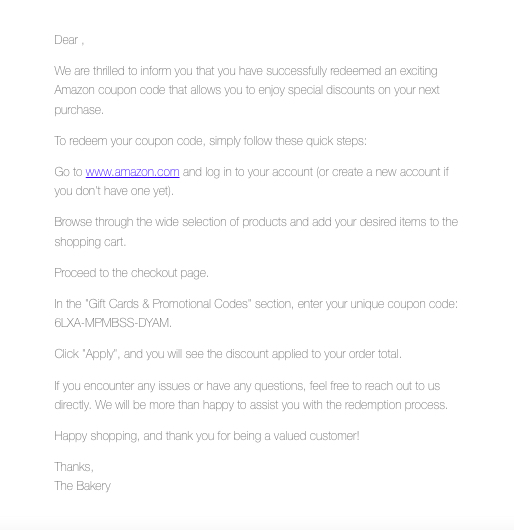
- After redeeming the reward, the customer will receive a notification via email or SMS containing the voucher.
- The business can also check the status of this redemption by going to Redemptions, Partner Rewards section