![Kangaroo-Rewards-App-Icon-BLUE-Oct-01-2025-07-47-23-2450-PM.png]](https://support.kangaroorewards.com/hs-fs/hubfs/Kangaroo-Rewards-App-Icon-BLUE-Oct-01-2025-07-47-23-2450-PM.png?height=40&name=Kangaroo-Rewards-App-Icon-BLUE-Oct-01-2025-07-47-23-2450-PM.png)
- Log in to your Kangaroo Business Portal.
- Click on Settings.
- Click on System Messages.

- Choose to Edit the Email Message under the Tier Upgrade Section.

- Click on the Language Icon, and choose the language needed. Default templates are available in different languages.

- Customize the congratulatory message sent to customers when they upgrade their tier, by clicking on Edit Email Template.

- In the Email Editor, customize your message, change colors and fonts...
-
Each template has their own set of Variables, some of them are required (*).
You cannot save your template if you have not included all the sets of required variables.
You will get an error message.
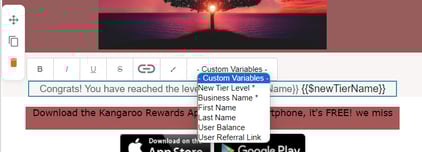
- There are also variables for the email subject that you can click on and use in your field.

- Make sure to Save and Exit on the top right of the page.
- The email message will be automatically saved and ready to be sent whenever one of the customers upgrades tiers.