![Kangaroo-Rewards-App-Icon-BLUE-Oct-01-2025-07-47-23-2450-PM.png]](https://support.kangaroorewards.com/hs-fs/hubfs/Kangaroo-Rewards-App-Icon-BLUE-Oct-01-2025-07-47-23-2450-PM.png?height=40&name=Kangaroo-Rewards-App-Icon-BLUE-Oct-01-2025-07-47-23-2450-PM.png)
A conditional offer is an excellent way to encourage business customers to buy more of a specific item or to spend more when they are in-store! This is done through promotions such as Buy One, Get One Free or Buy More, Save More.
How to Set Up a Conditional Offer
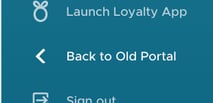
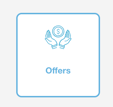
First, click on Return to the Old Portal and go to the Offers section of the business portal.
Then, follow these steps:
-
Click Create an Offer – choose Basic Offers.

-
Select a product or a tag.
This is located above the image placeholder.
If the business does not see products or tags, go to the Product section of the Kangaroo business portal and click Import Products from Lightspeed Retail.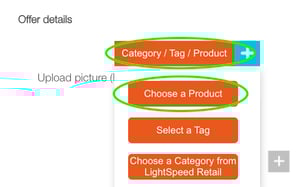
-
Add an image for the offer.
-
Select audience, ALL vs Targeted:
-
ALL = all new and existing customers in your Kangaroo database can use this promotion when it is applied on Lightspeed.
-
Targeted = the business MUST send the offer through a marketing campaign in Kangaroo.
-
-
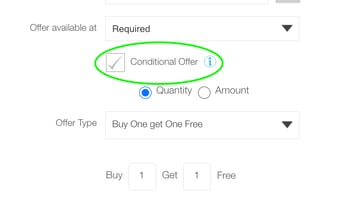
Make sure the Conditional Offer box is checked.
-
Select the Offer Type (Buy One Get One Free, Buy More Save More %, Buy More Save More $).
-
Insert the parameters based on the Offer Type (buy 1 get 1, buy 1 get 2, etc.).
-
Select an Offer Frequency.
-
Insert a Title.

-
Create an Offer Description (optional. Note: this is where you can add restrictions such as “Cannot be combined with sale items.”)
-
Select the Publish Date and Expiration Date.

-
Click Save at the bottom of the page to finalize the business offer!
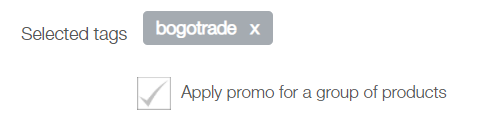
If the business attaches a tag to the offer, make sure that all products are properly tagged in Lightspeed.
Make sure the business checks this box:
The Buy One, Get One Free offer will be available on the Lightspeed sales screen under the Apply Promo button.