![Kangaroo-Rewards-App-Icon-BLUE-Oct-01-2025-07-47-23-2450-PM.png]](https://support.kangaroorewards.com/hs-fs/hubfs/Kangaroo-Rewards-App-Icon-BLUE-Oct-01-2025-07-47-23-2450-PM.png?height=40&name=Kangaroo-Rewards-App-Icon-BLUE-Oct-01-2025-07-47-23-2450-PM.png)
Setting up a kiosk mode Tablet:
- Go to Settings in the business portal.

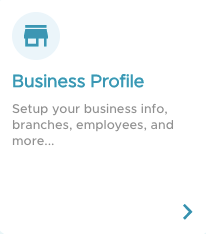
- Go to Business Profile.
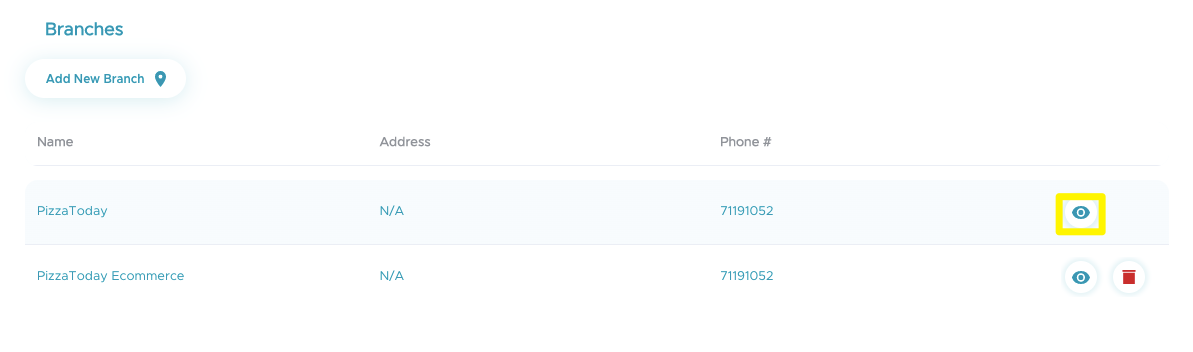
- Scroll down to Branches and press on the eye button.
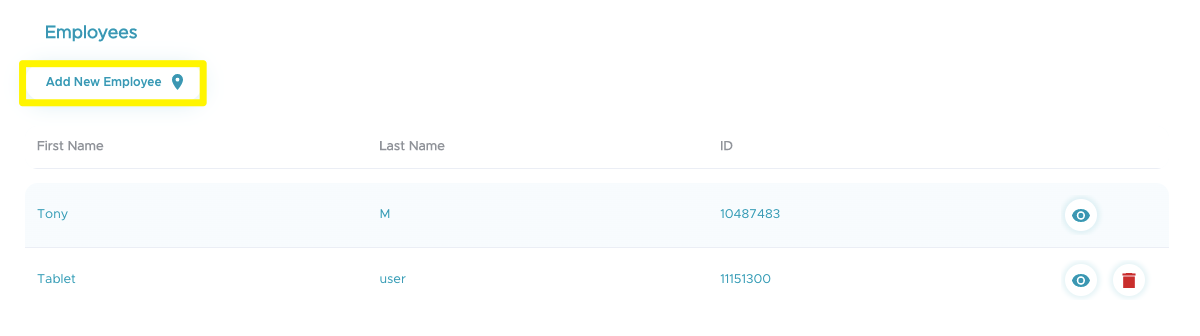
- Scroll down to Employees and press on Add New Employee.
- Fill in the information required and make sure to check the Kiosk mode user box.
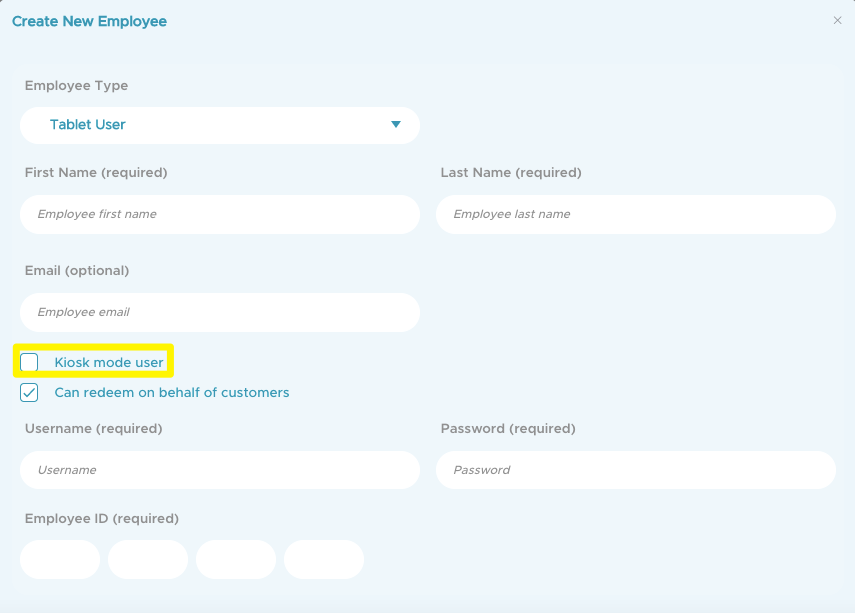
- Create a username and password in the appropriate boxes.
- Save.
- Go to the tablet.
- Download and open the Kangaroo Merchant app listed under “kangaroo Loyalty Rewards” in the Google Play store and the Apple store
- Log in using the username and password the employee just created
Don't forget to enable this rule from the Earning & Redeeming section of the business portal

Self signup:
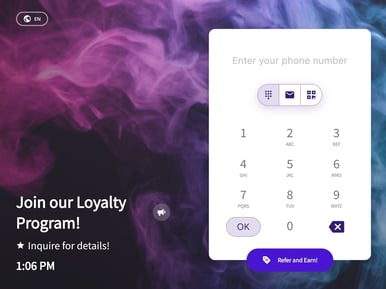
- The customer must enter either a phone number or email address on the tablet
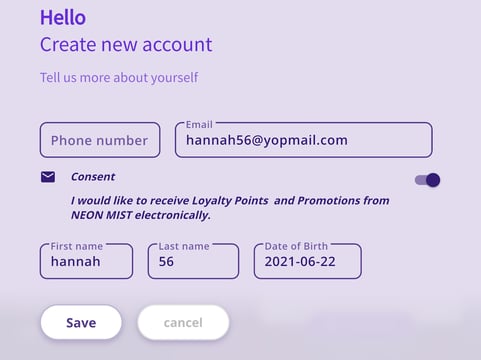
- Customers can then fill out their profile information and marketing consent
- Click on save
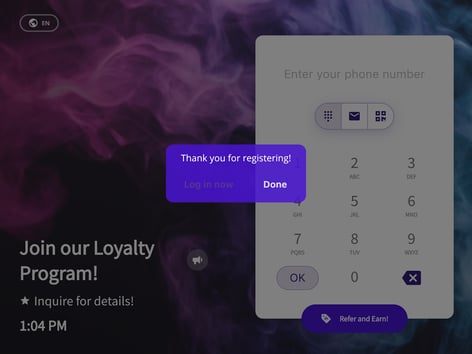
- A success message will appear letting customers know that they can either log in to the account or click on done.
Note: If the business is integrated with Lightspeed retail, the customer who signed up on the tablet will also have a profile in Lightspeed.