
- Help Center
- Products
- Attaching a Product
-
Kangaroo Apps
-
Email/SMS/Push Marketing
-
Workflows
-
Kangaroo Business Portal App
-
Points
-
Redeeming points
-
Offers
-
Tiers
-
Referrals
-
Branding
-
Release Notes
-
Rules
-
Customers
-
Gamification
-
Gift Cards
-
Analytics
-
Branches
-
Kiosk
-
Frequent Buyers Program
-
Surveys
-
Merchant App
-
White Label App
-
Business portal
-
Subscription
-
Members App
-
New Business Portal
-
Business Profile
-
Import Transaction
-
One-Pagers
-
FAQ
- FAQ- Lightspeed R Series
- FAQ- Shopify POS
- FAQ- Shopify ECOM
- FAQ- Lightspeed ECOM
- FAQ - WooCommerce
- FAQ - Standalone
- FAQ - BigCommerce
- FAQ - Magento
- Kangaroo Booking
- FAQ-Heartland
- FAQ - Judge.me
- FAQ- Lightspeed X Series
- FAQ- Lightspeed K Series
- FAQ- Lightspeed L Series
- FAQ - Lightspeed E Series (Ecwid)
- FAQ - MindBody POS
-
API
-
Kangaroo Reviews
-
Products
How to create a Free Product offer /redemption in Lightspeed C Series?
In order for you to create a Free Product offer or redemption in the Lightspeed C Series, you have to follow the steps below:
- First, you click on Offers on the left under the main menu or Redemptions depending on which you want to create.


- Then to start creating the offer, press on Create an Offer.
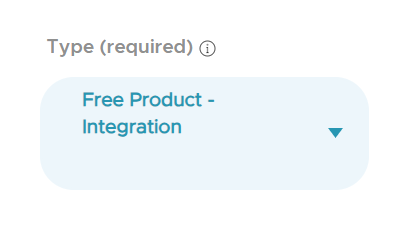
- While creating the offer or redemption, you add the reward type as Free Product Integration.
- This will give you access to the Product button when you scroll down in the optional parameters.
- Once you click the Product button, it will show you all the products available. If you have multiple integrations, make sure to choose the products under the LightSpeed Ecom Products section. In case you couldn't find the products on the display directly, you can search via the name or ID in the search bar.
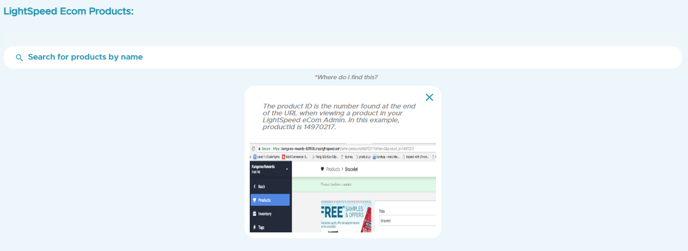
- If you want to know where to find the ID, click on the Where do I find this? button to know where to find it in Lightspeed C Series.
- Going to the Lightspeed C Series, click on Products within the main menu on the right, then press on the product required.

- Once you click on a certain item, check the URL for the ID. You copy and paste it in the search bar back in the Kangaroo Business Portal.
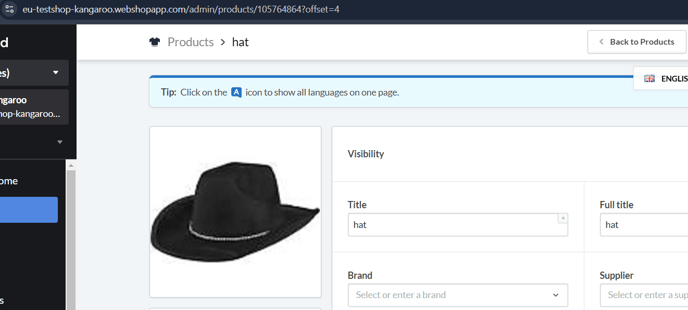
- For exmaple, in this scenario, the ID of the hat is 105764864. So you copy the ID and paste it in the Search Bar back in the Kangaroo Business Portal.
- When you find the product or item requested and select it back in the Kangaroo Business Portal, proceed with creating the offer or redemption normally and don't forget to save.