- Help Center
- Products
- Attaching a Product
-
Kangaroo Apps
-
Email/SMS/Push Marketing
-
Workflows
-
Kangaroo Business Portal App
-
Points
-
Redeeming points
-
Offers
-
Tiers
-
Referrals
-
Branding
-
Release Notes
-
Rules
-
Customers
-
Gamification
-
Gift Cards
-
Analytics
-
Branches
-
Kiosk
-
Frequent Buyers Program
-
Surveys
-
Merchant App
-
White Label App
-
Business portal
-
Subscription
-
Members App
-
New Business Portal
-
Business Profile
-
Import Transaction
-
One-Pagers
-
FAQ
- FAQ- Lightspeed R Series
- FAQ- Shopify POS
- FAQ- Shopify ECOM
- FAQ- Lightspeed ECOM
- FAQ - WooCommerce
- FAQ - Standalone
- FAQ - BigCommerce
- FAQ - Magento
- Kangaroo Booking
- FAQ-Heartland
- FAQ - Judge.me
- FAQ- Lightspeed X Series
- FAQ- Lightspeed K Series
- FAQ- Lightspeed L Series
- FAQ - Lightspeed E Series (Ecwid)
- FAQ - MindBody POS
-
API
-
Kangaroo Reviews
-
Products
How to create a Free Product offer /redemption in Lightspeed K?
In order to attach a free product to the offer/redemption in the Lightspeed K Series, you should follow the steps below:- First, you click on Offers on the left under the main menu or Redemptions depending on which you want to create.


- Then to start creating the offer, press on Create an Offer.
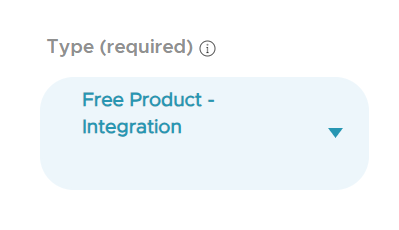
- While creating the offer or redemption, you add the reward type as Free Product Integration.
- Then, the Product icon will be available to be selected. Once you scroll down and click on the Products in the Optional Parameters.
- You either search for the product by its name or its SKU. for further information, you click on "Where do I find this" and you can get more details about where to find the SKU details.
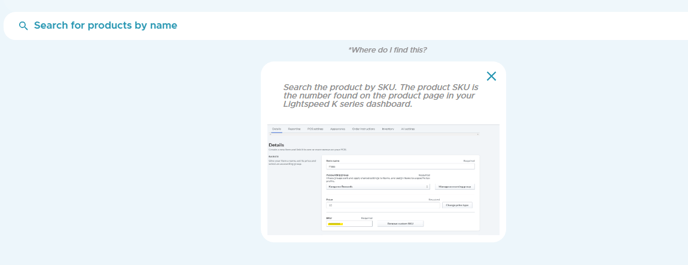
- Once the item is found and selected you can proceed with creating the offer/redemption.
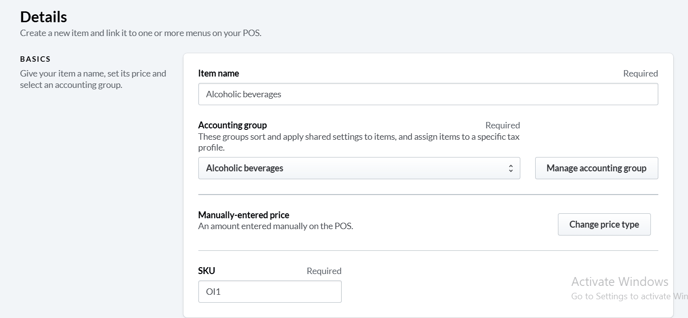
- In case you wanted to find the SKU, go back to the Lightspeed K Series and under the main bar, press on the items button.
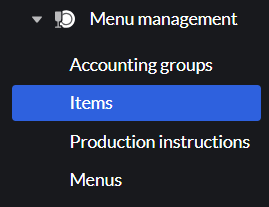
- Then, under the Details, you check the SKU number and copy to paste it in the search bar back in the Kangaroo Business Portal. Create your offer and save.