![Kangaroo-Rewards-App-Icon-BLUE-Oct-01-2025-07-47-23-2450-PM.png]](https://support.kangaroorewards.com/hs-fs/hubfs/Kangaroo-Rewards-App-Icon-BLUE-Oct-01-2025-07-47-23-2450-PM.png?height=40&name=Kangaroo-Rewards-App-Icon-BLUE-Oct-01-2025-07-47-23-2450-PM.png)
How to Set Up a Conditional Offer
-
Go to the Offers Section and Click on Create an Offer.
- Enable the Conditional Promotion in the Type Section.

-
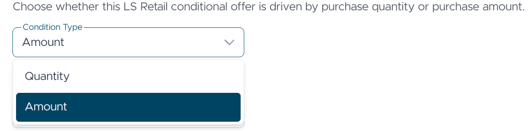
Choose if you want it to be based on Amount or Quantity.
-
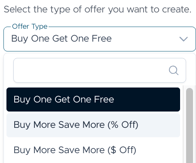
If it's based on "Quantity", choose the type of your offer and fill in the criteria required depending on the promotion you want to create.

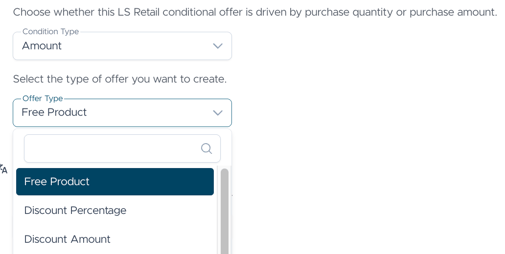
- If it's based on "Amount", choose the type of offer you want.
- Add a Title, Description and choose your target Audience.
ALL vs Targeted:- ALL = all new and existing customers in your Kangaroo database can use this promotion when it is applied on Lightspeed.
- Targeted = the business MUST send the offer through a marketing campaign in Kangaroo.
- Select the branch, and add an image for your offer.
- Choose the start and end date, and frequency.
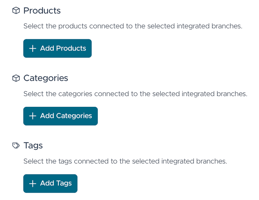
- In the Products & Promotions section, you can then select the product, the category or the tag from your Lightspeed Retail.
If the business does not see products or tags, go to the Product section of the Kangaroo business portal and click Import Products from Lightspeed Retail.
-
Click Save at the bottom of the page to finalize the business offer!
If the business attaches a tag to the offer, make sure that all products are properly tagged in Lightspeed.
Make sure to apply Promotion for Group:
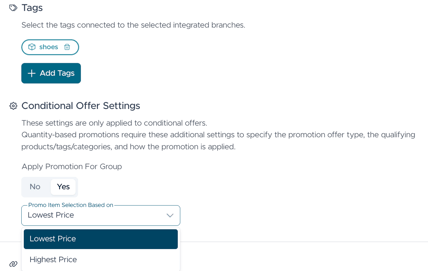
The Conditional offer will be available on the Lightspeed sales screen under the Apply Promo button.