---
title: Reviewing and Managing Submitted Receipts
description: Review, approve, or reject receipt submissions that require manual validation before loyalty points are awarded.
---
[Skip to content](https://support.kangaroorewards.com/knowledge/reviewing-and-managing-submitted-receipts#main-content)
- [English](https://support.kangaroorewards.com/knowledge/reviewing-and-managing-submitted-receipts)
- [Français](https://support.kangaroorewards.com/fr/knowledge/reviewing-and-managing-submitted-receipts)
English
Show submenu for translations
[Customer portal](https://support.kangaroorewards.com/tickets-view?hsLang=en)
![Kangaroo-Rewards-App-Icon-BLUE-Oct-01-2025-07-47-23-2450-PM.png\]](https://support.kangaroorewards.com/hs-fs/hubfs/Kangaroo-Rewards-App-Icon-BLUE-Oct-01-2025-07-47-23-2450-PM.png?height=40&name=Kangaroo-Rewards-App-Icon-BLUE-Oct-01-2025-07-47-23-2450-PM.png)
Open main navigation
Close main navigation
- - [English](https://support.kangaroorewards.com/knowledge/reviewing-and-managing-submitted-receipts)
- [Français](https://support.kangaroorewards.com/fr/knowledge/reviewing-and-managing-submitted-receipts)
English
Show submenu for translations
- [Customer portal](https://support.kangaroorewards.com/tickets-view)
- [Visit Our Website](https://loyalty.kangaroorewards.com/)
[Visit Our Website](https://loyalty.kangaroorewards.com/)
How Can We Help?
- There are no suggestions because the search field is empty.
1. [Help Center](https://support.kangaroorewards.com/knowledge?hsLang=en)
2. [Receipt Scanning](https://support.kangaroorewards.com/knowledge/receipt-scanning?hsLang=en)
# Reviewing and Managing Submitted Receipts
## The receipt review queue is where staff members approve or reject submissions that have been routed for manual review whether because your Approval Mode is set to Manual review, a receipt was flagged by template matching, or a submission exceeded a threshold.
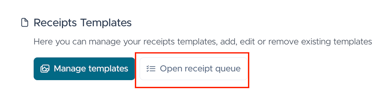
**Opening the queue**
From the Receipt Scanning settings page, click **Open receipt queue**.
**Reviewing a receipt**
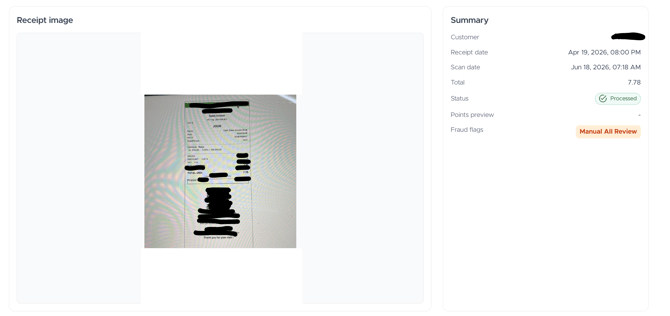
Select the receipt by clicking on the eye icon on the right:

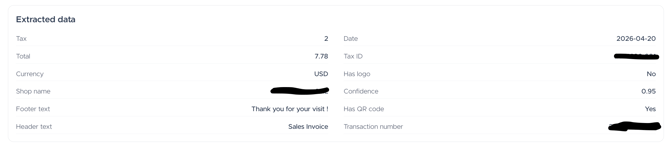
Each item in the queue displays the submitted receipt image alongside the data extracted by the system (store name, purchase amount, date). Review the image and extracted data and then choose to approve or reject the submission. If your Points override limit is set above 0, you will also have the option to adjust the number of points awarded before approving.
**Tips for efficient review**
Set clear internal guidelines for what constitutes a valid receipt before your team starts reviewing. Common reasons to reject include: illegible or partially obscured images, a store name that does not match your program's eligible vendors, a date that is suspiciously old, or a purchase amount that does not match the visible items on the receipt. Documenting these criteria helps ensure consistent decisions across your team.
- [Kangaroo Apps](https://support.kangaroorewards.com/knowledge/kangaroo-apps?hsLang=en#main-content)
- [Amazon - Partner Reward](https://support.kangaroorewards.com/knowledge/kangaroo-apps?hsLang=en#amazon-partner-reward)
- [Email Apps](https://support.kangaroorewards.com/knowledge/kangaroo-apps?hsLang=en#email-apps)
- [Shopify](https://support.kangaroorewards.com/knowledge/kangaroo-apps?hsLang=en#shopify)
- [BigCommerce](https://support.kangaroorewards.com/knowledge/kangaroo-apps?hsLang=en#bigcommerce)
- [WooCommerce](https://support.kangaroorewards.com/knowledge/kangaroo-apps?hsLang=en#woocommerce)
- [Magento V2](https://support.kangaroorewards.com/knowledge/kangaroo-apps?hsLang=en#magento-v2)
- [Lightspeed Ecom](https://support.kangaroorewards.com/knowledge/kangaroo-apps?hsLang=en#lightspeed-ecom)
- [Ecwid (E-Series)](https://support.kangaroorewards.com/knowledge/kangaroo-apps?hsLang=en#ecwid-e-series)
- [Lightspeed Retail](https://support.kangaroorewards.com/knowledge/kangaroo-apps?hsLang=en#lightspeed-retail)
- [Lightspeed X series](https://support.kangaroorewards.com/knowledge/kangaroo-apps?hsLang=en#lightspeed-x-series)
- [Lightspeed K Series](https://support.kangaroorewards.com/knowledge/kangaroo-apps?hsLang=en#lightspeed-k-series)
- [Lightspeed L series](https://support.kangaroorewards.com/knowledge/kangaroo-apps?hsLang=en#lightspeed-l-series)
- [Heartland](https://support.kangaroorewards.com/knowledge/kangaroo-apps?hsLang=en#heartland)
- [Gorgias](https://support.kangaroorewards.com/knowledge/kangaroo-apps?hsLang=en#gorgias)
- [Judge.me](https://support.kangaroorewards.com/knowledge/kangaroo-apps?hsLang=en#judge-me)
- [Ecomz](https://support.kangaroorewards.com/knowledge/kangaroo-apps?hsLang=en#ecomz)
- [System Message](https://support.kangaroorewards.com/knowledge/kangaroo-apps?hsLang=en#system-message)
- [Amazon Business](https://support.kangaroorewards.com/knowledge/kangaroo-apps?hsLang=en#amazon-business)
- [Email/SMS/Push Marketing](https://support.kangaroorewards.com/knowledge/email-sms-push-marketing?hsLang=en#main-content)
- [Consent](https://support.kangaroorewards.com/knowledge/email-sms-push-marketing?hsLang=en#consent)
- [Campaign Reporting](https://support.kangaroorewards.com/knowledge/email-sms-push-marketing?hsLang=en#campaign-reporting)
- [Text - SMS Best Practices](https://support.kangaroorewards.com/knowledge/email-sms-push-marketing?hsLang=en#text-sms-best-practices)
- [Text - SMS](https://support.kangaroorewards.com/knowledge/email-sms-push-marketing?hsLang=en#text-sms)
- [Email](https://support.kangaroorewards.com/knowledge/email-sms-push-marketing?hsLang=en#email)
- [Push](https://support.kangaroorewards.com/knowledge/email-sms-push-marketing?hsLang=en#push)
- [Schedule Campaign](https://support.kangaroorewards.com/knowledge/email-sms-push-marketing?hsLang=en#schedule-campaign)
- [Export List](https://support.kangaroorewards.com/knowledge/email-sms-push-marketing?hsLang=en#export-list)
- [Purchasing Credits](https://support.kangaroorewards.com/knowledge/email-sms-push-marketing?hsLang=en#purchasing-credits)
- [A/B Testing](https://support.kangaroorewards.com/knowledge/email-sms-push-marketing?hsLang=en#a-b-testing)
- [Workflows](https://support.kangaroorewards.com/knowledge/workflows?hsLang=en#main-content)
- [Workflows](https://support.kangaroorewards.com/knowledge/workflows?hsLang=en#workflows)
- [Kangaroo Business Portal App](https://support.kangaroorewards.com/knowledge/kangaroo-business-portal-app?hsLang=en#main-content)
- [Offer business portal app](https://support.kangaroorewards.com/knowledge/kangaroo-business-portal-app?hsLang=en#offer-business-portal-app)
- [Rewards business portal app](https://support.kangaroorewards.com/knowledge/kangaroo-business-portal-app?hsLang=en#rewards-business-portal-app)
- [Marketing business portal app](https://support.kangaroorewards.com/knowledge/kangaroo-business-portal-app?hsLang=en#marketing-business-portal-app)
- [Earning Rule Kangaroo business portal app](https://support.kangaroorewards.com/knowledge/kangaroo-business-portal-app?hsLang=en#earning-rule-kangaroo-business-portal-app)
- [Insights](https://support.kangaroorewards.com/knowledge/kangaroo-business-portal-app?hsLang=en#insights)
- [Points](https://support.kangaroorewards.com/knowledge/points?hsLang=en#main-content)
- [Tablet Earning](https://support.kangaroorewards.com/knowledge/points?hsLang=en#tablet-earning)
- [Earning points in Lightspeed](https://support.kangaroorewards.com/knowledge/points?hsLang=en#earning-points-in-lightspeed)
- [Tiers](https://support.kangaroorewards.com/knowledge/points?hsLang=en#tiers)
- [Reviews](https://support.kangaroorewards.com/knowledge/points?hsLang=en#reviews)
- [Redeeming points](https://support.kangaroorewards.com/knowledge/redeeming-points?hsLang=en#main-content)
- [Tablet Redemption](https://support.kangaroorewards.com/knowledge/redeeming-points?hsLang=en#tablet-redemption)
- [Redemption On Lightspeed Retail POS](https://support.kangaroorewards.com/knowledge/redeeming-points?hsLang=en#redemption-on-lightspeed-retail-pos)
- [Redemption For E-Commerce](https://support.kangaroorewards.com/knowledge/redeeming-points?hsLang=en#redemption-for-e-commerce)
- [Partner Rewards](https://support.kangaroorewards.com/knowledge/redeeming-points?hsLang=en#partner-rewards)
- [Offers](https://support.kangaroorewards.com/knowledge/offers?hsLang=en#main-content)
- [Offer Settings](https://support.kangaroorewards.com/knowledge/offers?hsLang=en#offer-settings)
- [Redeeming Offers](https://support.kangaroorewards.com/knowledge/offers?hsLang=en#redeeming-offers)
- [Lightspeed Conditional Offers](https://support.kangaroorewards.com/knowledge/offers?hsLang=en#lightspeed-conditional-offers)
- [E-Commerce Offers](https://support.kangaroorewards.com/knowledge/offers?hsLang=en#e-commerce-offers)
- [Tiers](https://support.kangaroorewards.com/knowledge/tiers?hsLang=en#main-content)
- [Tier Earning Rules](https://support.kangaroorewards.com/knowledge/tiers?hsLang=en#tier-earning-rules)
- [Override](https://support.kangaroorewards.com/knowledge/tiers?hsLang=en#override)
- [Tier Calculation](https://support.kangaroorewards.com/knowledge/tiers?hsLang=en#tier-calculation)
- [Referrals](https://support.kangaroorewards.com/knowledge/referrals?hsLang=en#main-content)
- [Tablet Referrals](https://support.kangaroorewards.com/knowledge/referrals?hsLang=en#tablet-referrals)
- [Kiosk Tablet Referrals](https://support.kangaroorewards.com/knowledge/referrals?hsLang=en#kiosk-tablet-referrals)
- [Link Referrals](https://support.kangaroorewards.com/knowledge/referrals?hsLang=en#link-referrals)
- [E-Commerce Referrals](https://support.kangaroorewards.com/knowledge/referrals?hsLang=en#e-commerce-referrals)
- [App Referrals](https://support.kangaroorewards.com/knowledge/referrals?hsLang=en#app-referrals)
- [Branded App Referrals](https://support.kangaroorewards.com/knowledge/referrals?hsLang=en#branded-app-referrals)
- [Branding](https://support.kangaroorewards.com/knowledge/branding?hsLang=en#main-content)
- [Slideshow](https://support.kangaroorewards.com/knowledge/branding?hsLang=en#slideshow)
- [App Colors](https://support.kangaroorewards.com/knowledge/branding?hsLang=en#app-colors)
- [Release Notes](https://support.kangaroorewards.com/knowledge/release-notes?hsLang=en)
- [Rules](https://support.kangaroorewards.com/knowledge/rules?hsLang=en#main-content)
- [E-Commerce Rules](https://support.kangaroorewards.com/knowledge/rules?hsLang=en#e-commerce-rules)
- [Multi-Factor Authentication (MFA)](https://support.kangaroorewards.com/knowledge/rules?hsLang=en#multi-factor-authentication-mfa)
- [A La Carte](https://support.kangaroorewards.com/knowledge/rules?hsLang=en#a-la-carte)
- [Customers](https://support.kangaroorewards.com/knowledge/customers?hsLang=en#main-content)
- [Tags](https://support.kangaroorewards.com/knowledge/customers?hsLang=en#tags)
- [Customers](https://support.kangaroorewards.com/knowledge/customers?hsLang=en#customers)
- [Gamification](https://support.kangaroorewards.com/knowledge/gamification?hsLang=en#main-content)
- [Draw](https://support.kangaroorewards.com/knowledge/gamification?hsLang=en#draw)
- [Spin To Win](https://support.kangaroorewards.com/knowledge/gamification?hsLang=en#spin-to-win)
- [Gift Cards](https://support.kangaroorewards.com/knowledge/gift-cards?hsLang=en#main-content)
- [Purchasing Gift Cards](https://support.kangaroorewards.com/knowledge/gift-cards?hsLang=en#purchasing-gift-cards)
- [App Gift Cards](https://support.kangaroorewards.com/knowledge/gift-cards?hsLang=en#app-gift-cards)
- [Analytics](https://support.kangaroorewards.com/knowledge/analytics?hsLang=en#main-content)
- [Dashboard](https://support.kangaroorewards.com/knowledge/analytics?hsLang=en#dashboard)
- [Marketing](https://support.kangaroorewards.com/knowledge/analytics?hsLang=en#marketing)
- [Branches](https://support.kangaroorewards.com/knowledge/branches?hsLang=en#main-content)
- [Employees](https://support.kangaroorewards.com/knowledge/branches?hsLang=en#employees)
- [Kiosk](https://support.kangaroorewards.com/knowledge/kiosk?hsLang=en)
- [Frequent Buyers Program](https://support.kangaroorewards.com/knowledge/frequent-buyers-program?hsLang=en)
- [Surveys](https://support.kangaroorewards.com/knowledge/surveys?hsLang=en)
- [Merchant App](https://support.kangaroorewards.com/knowledge/merchant-app?hsLang=en)
- [White Label App](https://support.kangaroorewards.com/knowledge/white-label-app?hsLang=en#main-content)
- [QR code Integration](https://support.kangaroorewards.com/knowledge/white-label-app?hsLang=en#qr-code-integration)
- [Business portal](https://support.kangaroorewards.com/knowledge/business-portal?hsLang=en#main-content)
- [Upload Clients](https://support.kangaroorewards.com/knowledge/business-portal?hsLang=en#upload-clients)
- [Transaction List](https://support.kangaroorewards.com/knowledge/business-portal?hsLang=en#transaction-list)
- [Branches](https://support.kangaroorewards.com/knowledge/business-portal?hsLang=en#branches)
- [Subscription](https://support.kangaroorewards.com/knowledge/subscription?hsLang=en)
- [Points Earning](https://support.kangaroorewards.com/knowledge/points-earning?hsLang=en)
- [Members App](https://support.kangaroorewards.com/knowledge/members-app?hsLang=en#main-content)
- [Web App](https://support.kangaroorewards.com/knowledge/members-app?hsLang=en#web-app)
- [Mobile App](https://support.kangaroorewards.com/knowledge/members-app?hsLang=en#mobile-app)
- [A La Carte](https://support.kangaroorewards.com/knowledge/a-la-carte?hsLang=en)
- [New Business Portal](https://support.kangaroorewards.com/knowledge/new-business-portal?hsLang=en#main-content)
- [Marketing](https://support.kangaroorewards.com/knowledge/new-business-portal?hsLang=en#marketing)
- [Business Profile](https://support.kangaroorewards.com/knowledge/business-profile?hsLang=en#main-content)
- [Branches](https://support.kangaroorewards.com/knowledge/business-profile?hsLang=en#branches)
- [Social Media](https://support.kangaroorewards.com/knowledge/business-profile?hsLang=en#social-media)
- [Import Transaction](https://support.kangaroorewards.com/knowledge/import-transaction?hsLang=en#main-content)
- [Import Transactions](https://support.kangaroorewards.com/knowledge/import-transaction?hsLang=en#import-transactions)
- [One-Pagers](https://support.kangaroorewards.com/knowledge/one-pagers?hsLang=en#main-content)
- [Marketing](https://support.kangaroorewards.com/knowledge/one-pagers?hsLang=en#marketing)
- [Referral](https://support.kangaroorewards.com/knowledge/one-pagers?hsLang=en#referral)
- [Integration](https://support.kangaroorewards.com/knowledge/one-pagers?hsLang=en#integration)
- [Gift Cards](https://support.kangaroorewards.com/knowledge/one-pagers?hsLang=en#gift-cards)
- [Kiosk Mode](https://support.kangaroorewards.com/knowledge/one-pagers?hsLang=en#kiosk-mode)
- [App Colors](https://support.kangaroorewards.com/knowledge/one-pagers?hsLang=en#app-colors)
- [Branches](https://support.kangaroorewards.com/knowledge/one-pagers?hsLang=en#branches)
- [Products](https://support.kangaroorewards.com/knowledge/one-pagers?hsLang=en#products)
- [Customer Management](https://support.kangaroorewards.com/knowledge/one-pagers?hsLang=en#customer-management)
- [Business Portal](https://support.kangaroorewards.com/knowledge/one-pagers?hsLang=en#business-portal)
- [Rules](https://support.kangaroorewards.com/knowledge/one-pagers?hsLang=en#rules)
- [E-Commerce](https://support.kangaroorewards.com/knowledge/one-pagers?hsLang=en#e-commerce)
- [Merchant App](https://support.kangaroorewards.com/knowledge/one-pagers?hsLang=en#merchant-app)
- [Enrollment](https://support.kangaroorewards.com/knowledge/one-pagers?hsLang=en#enrollment)
- [Security & Privacy](https://support.kangaroorewards.com/knowledge/one-pagers?hsLang=en#security-privacy)
- [FAQ](https://support.kangaroorewards.com/knowledge/faq?hsLang=en#main-content)
- [FAQ- Lightspeed R Series](https://support.kangaroorewards.com/knowledge/faq?hsLang=en#faq-lightspeed-r-series)
- [FAQ- Shopify POS](https://support.kangaroorewards.com/knowledge/faq?hsLang=en#faq-shopify-pos)
- [FAQ- Shopify ECOM](https://support.kangaroorewards.com/knowledge/faq?hsLang=en#faq-shopify-ecom)
- [FAQ- Lightspeed ECOM](https://support.kangaroorewards.com/knowledge/faq?hsLang=en#faq-lightspeed-ecom)
- [FAQ - WooCommerce](https://support.kangaroorewards.com/knowledge/faq?hsLang=en#faq-woocommerce)
- [FAQ - Standalone](https://support.kangaroorewards.com/knowledge/faq?hsLang=en#faq-standalone)
- [FAQ - BigCommerce](https://support.kangaroorewards.com/knowledge/faq?hsLang=en#faq-bigcommerce)
- [FAQ - Magento](https://support.kangaroorewards.com/knowledge/faq?hsLang=en#faq-magento)
- [FAQ-Heartland](https://support.kangaroorewards.com/knowledge/faq?hsLang=en#faq-heartland)
- [FAQ - Judge.me](https://support.kangaroorewards.com/knowledge/faq?hsLang=en#faq-judge-me)
- [FAQ- Lightspeed X Series](https://support.kangaroorewards.com/knowledge/faq?hsLang=en#faq-lightspeed-x-series)
- [FAQ- Lightspeed K Series](https://support.kangaroorewards.com/knowledge/faq?hsLang=en#faq-lightspeed-k-series)
- [FAQ- Lightspeed L Series](https://support.kangaroorewards.com/knowledge/faq?hsLang=en#faq-lightspeed-l-series)
- [FAQ - Lightspeed E Series (Ecwid)](https://support.kangaroorewards.com/knowledge/faq?hsLang=en#faq-lightspeed-e-series-ecwid)
- [FAQ - MindBody POS](https://support.kangaroorewards.com/knowledge/faq?hsLang=en#faq-mindbody-pos)
- [API](https://support.kangaroorewards.com/knowledge/api?hsLang=en)
- [Kangaroo Reviews](https://support.kangaroorewards.com/knowledge/kangaroo-reviews?hsLang=en#main-content)
- [General Settings](https://support.kangaroorewards.com/knowledge/kangaroo-reviews?hsLang=en#general-settings)
- [Reviews Widget](https://support.kangaroorewards.com/knowledge/kangaroo-reviews?hsLang=en#reviews-widget)
- [Reviews Carousel](https://support.kangaroorewards.com/knowledge/kangaroo-reviews?hsLang=en#reviews-carousel)
- [Manage Reviews](https://support.kangaroorewards.com/knowledge/kangaroo-reviews?hsLang=en#manage-reviews)
- [Live Geo-Tracking](https://support.kangaroorewards.com/knowledge/live-geo-tracking?hsLang=en#main-content)
- [Live - Geo](https://support.kangaroorewards.com/knowledge/live-geo-tracking?hsLang=en#live-geo)
- [Receipt Scanning](https://support.kangaroorewards.com/knowledge/receipt-scanning?hsLang=en)
[](http://www.kangaroorewards.com)
www.kangaroorewards.com Help Center
Copyright © 2026, © Kangaroo Rewards