---
title: How to Edit the Fields on the Signup Form
description: Customize the information collected from customers during loyalty program registration on the signup form.
---
[Skip to content](https://support.kangaroorewards.com/knowledge/how-to-edit-the-fields-on-the-signup-form-#main-content)
- [English](https://support.kangaroorewards.com/knowledge/how-to-edit-the-fields-on-the-signup-form-)
- [Français](https://support.kangaroorewards.com/fr/knowledge/alpha-portal-comment-modifier-les-champs-du-formulaire-dinscription)
English
Show submenu for translations
[Customer portal](https://support.kangaroorewards.com/tickets-view?hsLang=en)
![Kangaroo-Rewards-App-Icon-BLUE-Oct-01-2025-07-47-23-2450-PM.png\]](https://support.kangaroorewards.com/hs-fs/hubfs/Kangaroo-Rewards-App-Icon-BLUE-Oct-01-2025-07-47-23-2450-PM.png?height=40&name=Kangaroo-Rewards-App-Icon-BLUE-Oct-01-2025-07-47-23-2450-PM.png)
Open main navigation
Close main navigation
- - [English](https://support.kangaroorewards.com/knowledge/how-to-edit-the-fields-on-the-signup-form-)
- [Français](https://support.kangaroorewards.com/fr/knowledge/alpha-portal-comment-modifier-les-champs-du-formulaire-dinscription)
English
Show submenu for translations
- [Customer portal](https://support.kangaroorewards.com/tickets-view)
- [Visit Our Website](https://loyalty.kangaroorewards.com/)
[Visit Our Website](https://loyalty.kangaroorewards.com/)
How Can We Help?
- There are no suggestions because the search field is empty.
1. [Help Center](https://support.kangaroorewards.com/knowledge?hsLang=en)
2. [Rules](https://support.kangaroorewards.com/knowledge/rules?hsLang=en)
# How to Edit the Fields on the Signup Form
## Customize the information collected from customers during loyalty program registration on the signup form.
Customers can register for the loyalty program through different methods, including the signup form.
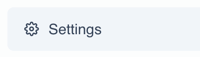
- Go to the **Settings** section of the business portal
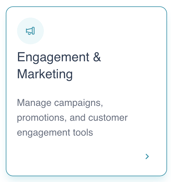
- Click on **Engagement & Marketing**
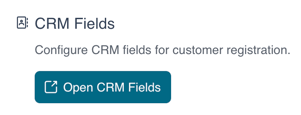
- Click on **Open** **CRM Fields** in the **Basic Settings**
- View the list of available fields
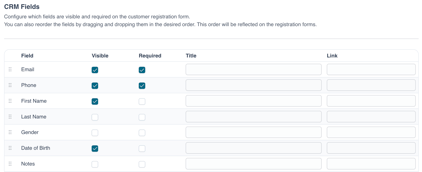
- Choose to **Hide** certain fields or make others **Required**
- You can also **reorder** the fields by dragging and dropping them in the desired order. This order will be reflected on the registration forms.
- Click **Save** in the lower right corner of the screen
*If you have a White Label App or using the Merchant App (for the Standalone solution), the CRM Fields will also be reflected on the signup pages.*
\*\*This is an example of a signup form. [Please click here!](https://enrol-dev.traktrok.com/?token=0AEAv712M3Sh3D0ksz2fkBYcCKNl8M7vtIBd4JIXOt3HHjyDE0visGIku0vqBhInMJccRIKliaJpZuCa&showLogo=0)
- [Kangaroo Apps](https://support.kangaroorewards.com/knowledge/kangaroo-apps?hsLang=en#main-content)
- [Amazon - Partner Reward](https://support.kangaroorewards.com/knowledge/kangaroo-apps?hsLang=en#amazon-partner-reward)
- [Email Apps](https://support.kangaroorewards.com/knowledge/kangaroo-apps?hsLang=en#email-apps)
- [Shopify](https://support.kangaroorewards.com/knowledge/kangaroo-apps?hsLang=en#shopify)
- [BigCommerce](https://support.kangaroorewards.com/knowledge/kangaroo-apps?hsLang=en#bigcommerce)
- [WooCommerce](https://support.kangaroorewards.com/knowledge/kangaroo-apps?hsLang=en#woocommerce)
- [Magento V2](https://support.kangaroorewards.com/knowledge/kangaroo-apps?hsLang=en#magento-v2)
- [Lightspeed Ecom](https://support.kangaroorewards.com/knowledge/kangaroo-apps?hsLang=en#lightspeed-ecom)
- [Ecwid (E-Series)](https://support.kangaroorewards.com/knowledge/kangaroo-apps?hsLang=en#ecwid-e-series)
- [Lightspeed Retail](https://support.kangaroorewards.com/knowledge/kangaroo-apps?hsLang=en#lightspeed-retail)
- [Lightspeed X series](https://support.kangaroorewards.com/knowledge/kangaroo-apps?hsLang=en#lightspeed-x-series)
- [Lightspeed K Series](https://support.kangaroorewards.com/knowledge/kangaroo-apps?hsLang=en#lightspeed-k-series)
- [Lightspeed L series](https://support.kangaroorewards.com/knowledge/kangaroo-apps?hsLang=en#lightspeed-l-series)
- [Heartland](https://support.kangaroorewards.com/knowledge/kangaroo-apps?hsLang=en#heartland)
- [Gorgias](https://support.kangaroorewards.com/knowledge/kangaroo-apps?hsLang=en#gorgias)
- [Judge.me](https://support.kangaroorewards.com/knowledge/kangaroo-apps?hsLang=en#judge-me)
- [Ecomz](https://support.kangaroorewards.com/knowledge/kangaroo-apps?hsLang=en#ecomz)
- [System Message](https://support.kangaroorewards.com/knowledge/kangaroo-apps?hsLang=en#system-message)
- [Amazon Business](https://support.kangaroorewards.com/knowledge/kangaroo-apps?hsLang=en#amazon-business)
- [Email/SMS/Push Marketing](https://support.kangaroorewards.com/knowledge/email-sms-push-marketing?hsLang=en#main-content)
- [Consent](https://support.kangaroorewards.com/knowledge/email-sms-push-marketing?hsLang=en#consent)
- [Campaign Reporting](https://support.kangaroorewards.com/knowledge/email-sms-push-marketing?hsLang=en#campaign-reporting)
- [Text - SMS Best Practices](https://support.kangaroorewards.com/knowledge/email-sms-push-marketing?hsLang=en#text-sms-best-practices)
- [Text - SMS](https://support.kangaroorewards.com/knowledge/email-sms-push-marketing?hsLang=en#text-sms)
- [Email](https://support.kangaroorewards.com/knowledge/email-sms-push-marketing?hsLang=en#email)
- [Push](https://support.kangaroorewards.com/knowledge/email-sms-push-marketing?hsLang=en#push)
- [Schedule Campaign](https://support.kangaroorewards.com/knowledge/email-sms-push-marketing?hsLang=en#schedule-campaign)
- [Export List](https://support.kangaroorewards.com/knowledge/email-sms-push-marketing?hsLang=en#export-list)
- [Purchasing Credits](https://support.kangaroorewards.com/knowledge/email-sms-push-marketing?hsLang=en#purchasing-credits)
- [A/B Testing](https://support.kangaroorewards.com/knowledge/email-sms-push-marketing?hsLang=en#a-b-testing)
- [Workflows](https://support.kangaroorewards.com/knowledge/workflows?hsLang=en#main-content)
- [Workflows](https://support.kangaroorewards.com/knowledge/workflows?hsLang=en#workflows)
- [Kangaroo Business Portal App](https://support.kangaroorewards.com/knowledge/kangaroo-business-portal-app?hsLang=en#main-content)
- [Offer business portal app](https://support.kangaroorewards.com/knowledge/kangaroo-business-portal-app?hsLang=en#offer-business-portal-app)
- [Rewards business portal app](https://support.kangaroorewards.com/knowledge/kangaroo-business-portal-app?hsLang=en#rewards-business-portal-app)
- [Marketing business portal app](https://support.kangaroorewards.com/knowledge/kangaroo-business-portal-app?hsLang=en#marketing-business-portal-app)
- [Earning Rule Kangaroo business portal app](https://support.kangaroorewards.com/knowledge/kangaroo-business-portal-app?hsLang=en#earning-rule-kangaroo-business-portal-app)
- [Insights](https://support.kangaroorewards.com/knowledge/kangaroo-business-portal-app?hsLang=en#insights)
- [Points](https://support.kangaroorewards.com/knowledge/points?hsLang=en#main-content)
- [Tablet Earning](https://support.kangaroorewards.com/knowledge/points?hsLang=en#tablet-earning)
- [Earning points in Lightspeed](https://support.kangaroorewards.com/knowledge/points?hsLang=en#earning-points-in-lightspeed)
- [Tiers](https://support.kangaroorewards.com/knowledge/points?hsLang=en#tiers)
- [Reviews](https://support.kangaroorewards.com/knowledge/points?hsLang=en#reviews)
- [Redeeming points](https://support.kangaroorewards.com/knowledge/redeeming-points?hsLang=en#main-content)
- [Tablet Redemption](https://support.kangaroorewards.com/knowledge/redeeming-points?hsLang=en#tablet-redemption)
- [Redemption On Lightspeed Retail POS](https://support.kangaroorewards.com/knowledge/redeeming-points?hsLang=en#redemption-on-lightspeed-retail-pos)
- [Redemption For E-Commerce](https://support.kangaroorewards.com/knowledge/redeeming-points?hsLang=en#redemption-for-e-commerce)
- [Partner Rewards](https://support.kangaroorewards.com/knowledge/redeeming-points?hsLang=en#partner-rewards)
- [Offers](https://support.kangaroorewards.com/knowledge/offers?hsLang=en#main-content)
- [Offer Settings](https://support.kangaroorewards.com/knowledge/offers?hsLang=en#offer-settings)
- [Redeeming Offers](https://support.kangaroorewards.com/knowledge/offers?hsLang=en#redeeming-offers)
- [Lightspeed Conditional Offers](https://support.kangaroorewards.com/knowledge/offers?hsLang=en#lightspeed-conditional-offers)
- [E-Commerce Offers](https://support.kangaroorewards.com/knowledge/offers?hsLang=en#e-commerce-offers)
- [Tiers](https://support.kangaroorewards.com/knowledge/tiers?hsLang=en#main-content)
- [Tier Earning Rules](https://support.kangaroorewards.com/knowledge/tiers?hsLang=en#tier-earning-rules)
- [Override](https://support.kangaroorewards.com/knowledge/tiers?hsLang=en#override)
- [Tier Calculation](https://support.kangaroorewards.com/knowledge/tiers?hsLang=en#tier-calculation)
- [Referrals](https://support.kangaroorewards.com/knowledge/referrals?hsLang=en#main-content)
- [Tablet Referrals](https://support.kangaroorewards.com/knowledge/referrals?hsLang=en#tablet-referrals)
- [Kiosk Tablet Referrals](https://support.kangaroorewards.com/knowledge/referrals?hsLang=en#kiosk-tablet-referrals)
- [Link Referrals](https://support.kangaroorewards.com/knowledge/referrals?hsLang=en#link-referrals)
- [E-Commerce Referrals](https://support.kangaroorewards.com/knowledge/referrals?hsLang=en#e-commerce-referrals)
- [App Referrals](https://support.kangaroorewards.com/knowledge/referrals?hsLang=en#app-referrals)
- [Branded App Referrals](https://support.kangaroorewards.com/knowledge/referrals?hsLang=en#branded-app-referrals)
- [Branding](https://support.kangaroorewards.com/knowledge/branding?hsLang=en#main-content)
- [Slideshow](https://support.kangaroorewards.com/knowledge/branding?hsLang=en#slideshow)
- [App Colors](https://support.kangaroorewards.com/knowledge/branding?hsLang=en#app-colors)
- [Release Notes](https://support.kangaroorewards.com/knowledge/release-notes?hsLang=en)
- [Rules](https://support.kangaroorewards.com/knowledge/rules?hsLang=en#main-content)
- [E-Commerce Rules](https://support.kangaroorewards.com/knowledge/rules?hsLang=en#e-commerce-rules)
- [Multi-Factor Authentication (MFA)](https://support.kangaroorewards.com/knowledge/rules?hsLang=en#multi-factor-authentication-mfa)
- [A La Carte](https://support.kangaroorewards.com/knowledge/rules?hsLang=en#a-la-carte)
- [Customers](https://support.kangaroorewards.com/knowledge/customers?hsLang=en#main-content)
- [Tags](https://support.kangaroorewards.com/knowledge/customers?hsLang=en#tags)
- [Customers](https://support.kangaroorewards.com/knowledge/customers?hsLang=en#customers)
- [Gamification](https://support.kangaroorewards.com/knowledge/gamification?hsLang=en#main-content)
- [Draw](https://support.kangaroorewards.com/knowledge/gamification?hsLang=en#draw)
- [Spin To Win](https://support.kangaroorewards.com/knowledge/gamification?hsLang=en#spin-to-win)
- [Gift Cards](https://support.kangaroorewards.com/knowledge/gift-cards?hsLang=en#main-content)
- [Purchasing Gift Cards](https://support.kangaroorewards.com/knowledge/gift-cards?hsLang=en#purchasing-gift-cards)
- [App Gift Cards](https://support.kangaroorewards.com/knowledge/gift-cards?hsLang=en#app-gift-cards)
- [Analytics](https://support.kangaroorewards.com/knowledge/analytics?hsLang=en#main-content)
- [Dashboard](https://support.kangaroorewards.com/knowledge/analytics?hsLang=en#dashboard)
- [Marketing](https://support.kangaroorewards.com/knowledge/analytics?hsLang=en#marketing)
- [Branches](https://support.kangaroorewards.com/knowledge/branches?hsLang=en#main-content)
- [Employees](https://support.kangaroorewards.com/knowledge/branches?hsLang=en#employees)
- [Kiosk](https://support.kangaroorewards.com/knowledge/kiosk?hsLang=en)
- [Frequent Buyers Program](https://support.kangaroorewards.com/knowledge/frequent-buyers-program?hsLang=en)
- [Surveys](https://support.kangaroorewards.com/knowledge/surveys?hsLang=en)
- [Merchant App](https://support.kangaroorewards.com/knowledge/merchant-app?hsLang=en)
- [White Label App](https://support.kangaroorewards.com/knowledge/white-label-app?hsLang=en#main-content)
- [QR code Integration](https://support.kangaroorewards.com/knowledge/white-label-app?hsLang=en#qr-code-integration)
- [Business portal](https://support.kangaroorewards.com/knowledge/business-portal?hsLang=en#main-content)
- [Upload Clients](https://support.kangaroorewards.com/knowledge/business-portal?hsLang=en#upload-clients)
- [Transaction List](https://support.kangaroorewards.com/knowledge/business-portal?hsLang=en#transaction-list)
- [Branches](https://support.kangaroorewards.com/knowledge/business-portal?hsLang=en#branches)
- [Subscription](https://support.kangaroorewards.com/knowledge/subscription?hsLang=en)
- [Points Earning](https://support.kangaroorewards.com/knowledge/points-earning?hsLang=en)
- [Members App](https://support.kangaroorewards.com/knowledge/members-app?hsLang=en#main-content)
- [Web App](https://support.kangaroorewards.com/knowledge/members-app?hsLang=en#web-app)
- [Mobile App](https://support.kangaroorewards.com/knowledge/members-app?hsLang=en#mobile-app)
- [A La Carte](https://support.kangaroorewards.com/knowledge/a-la-carte?hsLang=en)
- [New Business Portal](https://support.kangaroorewards.com/knowledge/new-business-portal?hsLang=en#main-content)
- [Marketing](https://support.kangaroorewards.com/knowledge/new-business-portal?hsLang=en#marketing)
- [Business Profile](https://support.kangaroorewards.com/knowledge/business-profile?hsLang=en#main-content)
- [Branches](https://support.kangaroorewards.com/knowledge/business-profile?hsLang=en#branches)
- [Social Media](https://support.kangaroorewards.com/knowledge/business-profile?hsLang=en#social-media)
- [Import Transaction](https://support.kangaroorewards.com/knowledge/import-transaction?hsLang=en#main-content)
- [Import Transactions](https://support.kangaroorewards.com/knowledge/import-transaction?hsLang=en#import-transactions)
- [One-Pagers](https://support.kangaroorewards.com/knowledge/one-pagers?hsLang=en#main-content)
- [Marketing](https://support.kangaroorewards.com/knowledge/one-pagers?hsLang=en#marketing)
- [Referral](https://support.kangaroorewards.com/knowledge/one-pagers?hsLang=en#referral)
- [Integration](https://support.kangaroorewards.com/knowledge/one-pagers?hsLang=en#integration)
- [Gift Cards](https://support.kangaroorewards.com/knowledge/one-pagers?hsLang=en#gift-cards)
- [Kiosk Mode](https://support.kangaroorewards.com/knowledge/one-pagers?hsLang=en#kiosk-mode)
- [App Colors](https://support.kangaroorewards.com/knowledge/one-pagers?hsLang=en#app-colors)
- [Branches](https://support.kangaroorewards.com/knowledge/one-pagers?hsLang=en#branches)
- [Products](https://support.kangaroorewards.com/knowledge/one-pagers?hsLang=en#products)
- [Customer Management](https://support.kangaroorewards.com/knowledge/one-pagers?hsLang=en#customer-management)
- [Business Portal](https://support.kangaroorewards.com/knowledge/one-pagers?hsLang=en#business-portal)
- [Rules](https://support.kangaroorewards.com/knowledge/one-pagers?hsLang=en#rules)
- [E-Commerce](https://support.kangaroorewards.com/knowledge/one-pagers?hsLang=en#e-commerce)
- [Merchant App](https://support.kangaroorewards.com/knowledge/one-pagers?hsLang=en#merchant-app)
- [Enrollment](https://support.kangaroorewards.com/knowledge/one-pagers?hsLang=en#enrollment)
- [Security & Privacy](https://support.kangaroorewards.com/knowledge/one-pagers?hsLang=en#security-privacy)
- [FAQ](https://support.kangaroorewards.com/knowledge/faq?hsLang=en#main-content)
- [FAQ- Lightspeed R Series](https://support.kangaroorewards.com/knowledge/faq?hsLang=en#faq-lightspeed-r-series)
- [FAQ- Shopify POS](https://support.kangaroorewards.com/knowledge/faq?hsLang=en#faq-shopify-pos)
- [FAQ- Shopify ECOM](https://support.kangaroorewards.com/knowledge/faq?hsLang=en#faq-shopify-ecom)
- [FAQ- Lightspeed ECOM](https://support.kangaroorewards.com/knowledge/faq?hsLang=en#faq-lightspeed-ecom)
- [FAQ - WooCommerce](https://support.kangaroorewards.com/knowledge/faq?hsLang=en#faq-woocommerce)
- [FAQ - Standalone](https://support.kangaroorewards.com/knowledge/faq?hsLang=en#faq-standalone)
- [FAQ - BigCommerce](https://support.kangaroorewards.com/knowledge/faq?hsLang=en#faq-bigcommerce)
- [FAQ - Magento](https://support.kangaroorewards.com/knowledge/faq?hsLang=en#faq-magento)
- [Kangaroo Booking](https://support.kangaroorewards.com/knowledge/faq?hsLang=en#kangaroo-booking)
- [FAQ-Heartland](https://support.kangaroorewards.com/knowledge/faq?hsLang=en#faq-heartland)
- [FAQ - Judge.me](https://support.kangaroorewards.com/knowledge/faq?hsLang=en#faq-judge-me)
- [FAQ- Lightspeed X Series](https://support.kangaroorewards.com/knowledge/faq?hsLang=en#faq-lightspeed-x-series)
- [FAQ- Lightspeed K Series](https://support.kangaroorewards.com/knowledge/faq?hsLang=en#faq-lightspeed-k-series)
- [FAQ- Lightspeed L Series](https://support.kangaroorewards.com/knowledge/faq?hsLang=en#faq-lightspeed-l-series)
- [FAQ - Lightspeed E Series (Ecwid)](https://support.kangaroorewards.com/knowledge/faq?hsLang=en#faq-lightspeed-e-series-ecwid)
- [FAQ - MindBody POS](https://support.kangaroorewards.com/knowledge/faq?hsLang=en#faq-mindbody-pos)
- [API](https://support.kangaroorewards.com/knowledge/api?hsLang=en)
- [Kangaroo Reviews](https://support.kangaroorewards.com/knowledge/kangaroo-reviews?hsLang=en#main-content)
- [General Settings](https://support.kangaroorewards.com/knowledge/kangaroo-reviews?hsLang=en#general-settings)
- [Reviews Widget](https://support.kangaroorewards.com/knowledge/kangaroo-reviews?hsLang=en#reviews-widget)
- [Reviews Carousel](https://support.kangaroorewards.com/knowledge/kangaroo-reviews?hsLang=en#reviews-carousel)
- [Manage Reviews](https://support.kangaroorewards.com/knowledge/kangaroo-reviews?hsLang=en#manage-reviews)
- [Live Geo-Tracking](https://support.kangaroorewards.com/knowledge/live-geo-tracking?hsLang=en#main-content)
- [Live - Geo](https://support.kangaroorewards.com/knowledge/live-geo-tracking?hsLang=en#live-geo)
- [Receipt Scanning](https://support.kangaroorewards.com/knowledge/receipt-scanning?hsLang=en)
[](http://www.kangaroorewards.com)
www.kangaroorewards.com Help Center
Copyright © 2026, © Kangaroo Rewards