![Kangaroo-Rewards-App-Icon-BLUE-Oct-01-2025-07-47-23-2450-PM.png]](https://support.kangaroorewards.com/hs-fs/hubfs/Kangaroo-Rewards-App-Icon-BLUE-Oct-01-2025-07-47-23-2450-PM.png?height=40&name=Kangaroo-Rewards-App-Icon-BLUE-Oct-01-2025-07-47-23-2450-PM.png)
In order to Attach a Free Product to an Offer/Redemption in Lightspeed X, you should follow the steps below:
- First, you click on Offers on the left under the main menu or Redemptions depending on which you want to create.


- Then to start creating the offer, press on Create an Offer.
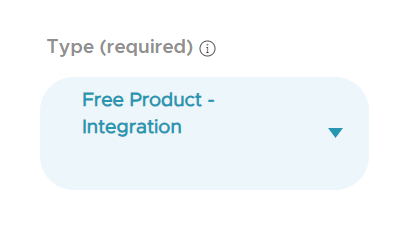
- While creating the offer or redemption, you add the reward type as Free Product Integration.
- Next, scroll down to the optional parameters and press on Products
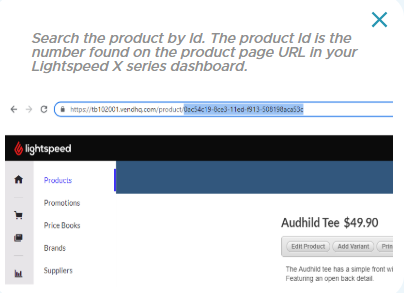
- Then a pop up appears showing the Lightspeed X Series products. If the product you want to attach doesn't appear on the screen right away, you can paste the Product ID after copying it from the URL on Lightspeed X in the search bar below. Or you can click on "Where do I find this?" for further instructions.
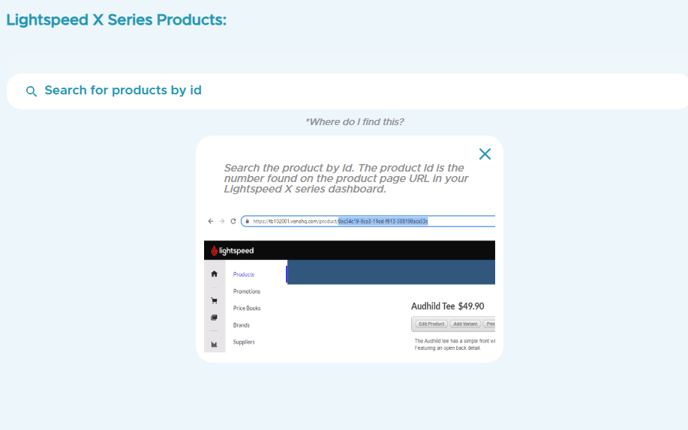
- To find the Product ID, you go to the Lightspeed X account and click on the Catalog in the main bar section.

- Then you search for the product requested within the search bar after pressing on Products
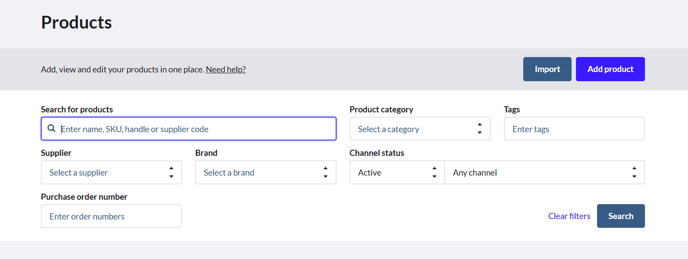
- Once you find the item and click on it for the details, it opens a new tab by which you can find the Product ID that is found on the product page URL in the Lightspeed X series Dashboard. This Product ID should be copied to be used in finding the item in the Kangaroo business portal.
- Once the product is selected back in the Kangaroo Business Portal by inserting the ID in the search bar, you press done and continue with creating your offer/redemption then press save.