---
title: What is the Draw module and how to set this up
description: A Draw or a contest is a great way to interest and encourage customers to come in and spend, while offering them great prizes!
---
[Skip to content](https://support.kangaroorewards.com/knowledge/alpha-portal-what-is-the-draw-module-and-how-to-set-this-up#main-content)
- [English](https://support.kangaroorewards.com/knowledge/alpha-portal-what-is-the-draw-module-and-how-to-set-this-up)
- [Français](https://support.kangaroorewards.com/fr/knowledge/alpha-portal-quest-ce-que-le-module-de-tirage-au-sort-et-comment-le-configurer)
English
Show submenu for translations
[Customer portal](https://support.kangaroorewards.com/tickets-view?hsLang=en)
![Kangaroo-Rewards-App-Icon-BLUE-Oct-01-2025-07-47-23-2450-PM.png\]](https://support.kangaroorewards.com/hs-fs/hubfs/Kangaroo-Rewards-App-Icon-BLUE-Oct-01-2025-07-47-23-2450-PM.png?height=40&name=Kangaroo-Rewards-App-Icon-BLUE-Oct-01-2025-07-47-23-2450-PM.png)
Open main navigation
Close main navigation
- - [English](https://support.kangaroorewards.com/knowledge/alpha-portal-what-is-the-draw-module-and-how-to-set-this-up)
- [Français](https://support.kangaroorewards.com/fr/knowledge/alpha-portal-quest-ce-que-le-module-de-tirage-au-sort-et-comment-le-configurer)
English
Show submenu for translations
- [Customer portal](https://support.kangaroorewards.com/tickets-view)
- [Visit Our Website](https://loyalty.kangaroorewards.com/)
[Visit Our Website](https://loyalty.kangaroorewards.com/)
How Can We Help?
- There are no suggestions because the search field is empty.
1. [Help Center](https://support.kangaroorewards.com/knowledge?hsLang=en)
2. [Gamification](https://support.kangaroorewards.com/knowledge/gamification?hsLang=en)
3. [Draw](https://support.kangaroorewards.com/knowledge/gamification?hsLang=en#draw)
# What is the Draw module and how to set this up
## A Draw or a contest is a great way to interest and encourage customers to come in and spend, while offering them great prizes!
The best part about the draw is that it is so simple to set up and fully digital! No need for raffle tickets, taking business cards in a bowl, the business define the rules and kangaroo business portal take care of the rest.
**How to set up a Draw?**
- Go to the **Business portal.**
- Go to the **Gamification** section - Draws.
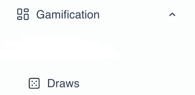
- Click on **Start a New Draw.**
- Fill out the simple form to create the draw: add the title , draw type , upload an image …
- Fill out the quick off date , time , draw date , draw time, maximum claim date and location availability .
- Add and create your **prizes.**
- Define what the prizes are and fill their criteria to finish customizing your draw.
- click on **Save**.
**Common FAQ about the Draw**
1. Can I have multiple prizes and multiple winners? **Yes**
2. What is the "Kick Off Date" and "Kick Off Time"? **This is the date and time you would like to start your draw.**
3. What is the "Draw Date" and "Draw Time"? **This is the date and time your draw will end and a winner will be selected.**
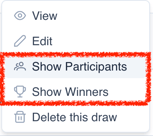
4. Can I see who has entered and how many times? **Yes. In the business portal, go to the Draws section and click on the 3 dots next to your Draw. Click on "Show Participants" and a full list of customers who are participant will be available.**
****
5. - A **$100** purchase gives the customer **1 draw entry**.
- A **$500** purchase gives the customer **5 draw entries**.
### Purchase Amount Draws?
For the **Purchase Amount** draw type, customers can earn multiple entries based on the purchase amount.
**Example:**
If the purchase amount required for one entry is **$100**:
- On the **White Label app**, customers can view the **number of draw entries they have accumulated**. This information is only available through the White Label app.
- [Kangaroo Apps](https://support.kangaroorewards.com/knowledge/kangaroo-apps?hsLang=en#main-content)
- [Amazon - Partner Reward](https://support.kangaroorewards.com/knowledge/kangaroo-apps?hsLang=en#amazon-partner-reward)
- [Email Apps](https://support.kangaroorewards.com/knowledge/kangaroo-apps?hsLang=en#email-apps)
- [Shopify](https://support.kangaroorewards.com/knowledge/kangaroo-apps?hsLang=en#shopify)
- [BigCommerce](https://support.kangaroorewards.com/knowledge/kangaroo-apps?hsLang=en#bigcommerce)
- [WooCommerce](https://support.kangaroorewards.com/knowledge/kangaroo-apps?hsLang=en#woocommerce)
- [Magento V2](https://support.kangaroorewards.com/knowledge/kangaroo-apps?hsLang=en#magento-v2)
- [Lightspeed Ecom](https://support.kangaroorewards.com/knowledge/kangaroo-apps?hsLang=en#lightspeed-ecom)
- [Ecwid (E-Series)](https://support.kangaroorewards.com/knowledge/kangaroo-apps?hsLang=en#ecwid-e-series)
- [Lightspeed Retail](https://support.kangaroorewards.com/knowledge/kangaroo-apps?hsLang=en#lightspeed-retail)
- [Lightspeed X series](https://support.kangaroorewards.com/knowledge/kangaroo-apps?hsLang=en#lightspeed-x-series)
- [Lightspeed K Series](https://support.kangaroorewards.com/knowledge/kangaroo-apps?hsLang=en#lightspeed-k-series)
- [Lightspeed L series](https://support.kangaroorewards.com/knowledge/kangaroo-apps?hsLang=en#lightspeed-l-series)
- [Heartland](https://support.kangaroorewards.com/knowledge/kangaroo-apps?hsLang=en#heartland)
- [Gorgias](https://support.kangaroorewards.com/knowledge/kangaroo-apps?hsLang=en#gorgias)
- [Judge.me](https://support.kangaroorewards.com/knowledge/kangaroo-apps?hsLang=en#judge-me)
- [Ecomz](https://support.kangaroorewards.com/knowledge/kangaroo-apps?hsLang=en#ecomz)
- [System Message](https://support.kangaroorewards.com/knowledge/kangaroo-apps?hsLang=en#system-message)
- [Amazon Business](https://support.kangaroorewards.com/knowledge/kangaroo-apps?hsLang=en#amazon-business)
- [Email/SMS/Push Marketing](https://support.kangaroorewards.com/knowledge/email-sms-push-marketing?hsLang=en#main-content)
- [Consent](https://support.kangaroorewards.com/knowledge/email-sms-push-marketing?hsLang=en#consent)
- [Campaign Reporting](https://support.kangaroorewards.com/knowledge/email-sms-push-marketing?hsLang=en#campaign-reporting)
- [Text - SMS Best Practices](https://support.kangaroorewards.com/knowledge/email-sms-push-marketing?hsLang=en#text-sms-best-practices)
- [Text - SMS](https://support.kangaroorewards.com/knowledge/email-sms-push-marketing?hsLang=en#text-sms)
- [Email](https://support.kangaroorewards.com/knowledge/email-sms-push-marketing?hsLang=en#email)
- [Push](https://support.kangaroorewards.com/knowledge/email-sms-push-marketing?hsLang=en#push)
- [Schedule Campaign](https://support.kangaroorewards.com/knowledge/email-sms-push-marketing?hsLang=en#schedule-campaign)
- [Export List](https://support.kangaroorewards.com/knowledge/email-sms-push-marketing?hsLang=en#export-list)
- [Purchasing Credits](https://support.kangaroorewards.com/knowledge/email-sms-push-marketing?hsLang=en#purchasing-credits)
- [A/B Testing](https://support.kangaroorewards.com/knowledge/email-sms-push-marketing?hsLang=en#a-b-testing)
- [Workflows](https://support.kangaroorewards.com/knowledge/workflows?hsLang=en#main-content)
- [Workflows](https://support.kangaroorewards.com/knowledge/workflows?hsLang=en#workflows)
- [Kangaroo Business Portal App](https://support.kangaroorewards.com/knowledge/kangaroo-business-portal-app?hsLang=en#main-content)
- [Offer business portal app](https://support.kangaroorewards.com/knowledge/kangaroo-business-portal-app?hsLang=en#offer-business-portal-app)
- [Rewards business portal app](https://support.kangaroorewards.com/knowledge/kangaroo-business-portal-app?hsLang=en#rewards-business-portal-app)
- [Marketing business portal app](https://support.kangaroorewards.com/knowledge/kangaroo-business-portal-app?hsLang=en#marketing-business-portal-app)
- [Earning Rule Kangaroo business portal app](https://support.kangaroorewards.com/knowledge/kangaroo-business-portal-app?hsLang=en#earning-rule-kangaroo-business-portal-app)
- [Insights](https://support.kangaroorewards.com/knowledge/kangaroo-business-portal-app?hsLang=en#insights)
- [Points](https://support.kangaroorewards.com/knowledge/points?hsLang=en#main-content)
- [Tablet Earning](https://support.kangaroorewards.com/knowledge/points?hsLang=en#tablet-earning)
- [Earning points in Lightspeed](https://support.kangaroorewards.com/knowledge/points?hsLang=en#earning-points-in-lightspeed)
- [Tiers](https://support.kangaroorewards.com/knowledge/points?hsLang=en#tiers)
- [Reviews](https://support.kangaroorewards.com/knowledge/points?hsLang=en#reviews)
- [Redeeming points](https://support.kangaroorewards.com/knowledge/redeeming-points?hsLang=en#main-content)
- [Tablet Redemption](https://support.kangaroorewards.com/knowledge/redeeming-points?hsLang=en#tablet-redemption)
- [Redemption On Lightspeed Retail POS](https://support.kangaroorewards.com/knowledge/redeeming-points?hsLang=en#redemption-on-lightspeed-retail-pos)
- [Redemption For E-Commerce](https://support.kangaroorewards.com/knowledge/redeeming-points?hsLang=en#redemption-for-e-commerce)
- [Partner Rewards](https://support.kangaroorewards.com/knowledge/redeeming-points?hsLang=en#partner-rewards)
- [Offers](https://support.kangaroorewards.com/knowledge/offers?hsLang=en#main-content)
- [Offer Settings](https://support.kangaroorewards.com/knowledge/offers?hsLang=en#offer-settings)
- [Redeeming Offers](https://support.kangaroorewards.com/knowledge/offers?hsLang=en#redeeming-offers)
- [Lightspeed Conditional Offers](https://support.kangaroorewards.com/knowledge/offers?hsLang=en#lightspeed-conditional-offers)
- [E-Commerce Offers](https://support.kangaroorewards.com/knowledge/offers?hsLang=en#e-commerce-offers)
- [Tiers](https://support.kangaroorewards.com/knowledge/tiers?hsLang=en#main-content)
- [Tier Earning Rules](https://support.kangaroorewards.com/knowledge/tiers?hsLang=en#tier-earning-rules)
- [Override](https://support.kangaroorewards.com/knowledge/tiers?hsLang=en#override)
- [Tier Calculation](https://support.kangaroorewards.com/knowledge/tiers?hsLang=en#tier-calculation)
- [Referrals](https://support.kangaroorewards.com/knowledge/referrals?hsLang=en#main-content)
- [Tablet Referrals](https://support.kangaroorewards.com/knowledge/referrals?hsLang=en#tablet-referrals)
- [Kiosk Tablet Referrals](https://support.kangaroorewards.com/knowledge/referrals?hsLang=en#kiosk-tablet-referrals)
- [Link Referrals](https://support.kangaroorewards.com/knowledge/referrals?hsLang=en#link-referrals)
- [E-Commerce Referrals](https://support.kangaroorewards.com/knowledge/referrals?hsLang=en#e-commerce-referrals)
- [App Referrals](https://support.kangaroorewards.com/knowledge/referrals?hsLang=en#app-referrals)
- [Branded App Referrals](https://support.kangaroorewards.com/knowledge/referrals?hsLang=en#branded-app-referrals)
- [Branding](https://support.kangaroorewards.com/knowledge/branding?hsLang=en#main-content)
- [Slideshow](https://support.kangaroorewards.com/knowledge/branding?hsLang=en#slideshow)
- [App Colors](https://support.kangaroorewards.com/knowledge/branding?hsLang=en#app-colors)
- [Release Notes](https://support.kangaroorewards.com/knowledge/release-notes?hsLang=en)
- [Rules](https://support.kangaroorewards.com/knowledge/rules?hsLang=en#main-content)
- [E-Commerce Rules](https://support.kangaroorewards.com/knowledge/rules?hsLang=en#e-commerce-rules)
- [Multi-Factor Authentication (MFA)](https://support.kangaroorewards.com/knowledge/rules?hsLang=en#multi-factor-authentication-mfa)
- [A La Carte](https://support.kangaroorewards.com/knowledge/rules?hsLang=en#a-la-carte)
- [Customers](https://support.kangaroorewards.com/knowledge/customers?hsLang=en#main-content)
- [Tags](https://support.kangaroorewards.com/knowledge/customers?hsLang=en#tags)
- [Customers](https://support.kangaroorewards.com/knowledge/customers?hsLang=en#customers)
- [Gamification](https://support.kangaroorewards.com/knowledge/gamification?hsLang=en#main-content)
- [Draw](https://support.kangaroorewards.com/knowledge/gamification?hsLang=en#draw)
- [Spin To Win](https://support.kangaroorewards.com/knowledge/gamification?hsLang=en#spin-to-win)
- [Gift Cards](https://support.kangaroorewards.com/knowledge/gift-cards?hsLang=en#main-content)
- [Purchasing Gift Cards](https://support.kangaroorewards.com/knowledge/gift-cards?hsLang=en#purchasing-gift-cards)
- [App Gift Cards](https://support.kangaroorewards.com/knowledge/gift-cards?hsLang=en#app-gift-cards)
- [Analytics](https://support.kangaroorewards.com/knowledge/analytics?hsLang=en#main-content)
- [Dashboard](https://support.kangaroorewards.com/knowledge/analytics?hsLang=en#dashboard)
- [Marketing](https://support.kangaroorewards.com/knowledge/analytics?hsLang=en#marketing)
- [Branches](https://support.kangaroorewards.com/knowledge/branches?hsLang=en#main-content)
- [Employees](https://support.kangaroorewards.com/knowledge/branches?hsLang=en#employees)
- [Kiosk](https://support.kangaroorewards.com/knowledge/kiosk?hsLang=en)
- [Frequent Buyers Program](https://support.kangaroorewards.com/knowledge/frequent-buyers-program?hsLang=en)
- [Surveys](https://support.kangaroorewards.com/knowledge/surveys?hsLang=en)
- [Merchant App](https://support.kangaroorewards.com/knowledge/merchant-app?hsLang=en)
- [White Label App](https://support.kangaroorewards.com/knowledge/white-label-app?hsLang=en#main-content)
- [QR code Integration](https://support.kangaroorewards.com/knowledge/white-label-app?hsLang=en#qr-code-integration)
- [Business portal](https://support.kangaroorewards.com/knowledge/business-portal?hsLang=en#main-content)
- [Upload Clients](https://support.kangaroorewards.com/knowledge/business-portal?hsLang=en#upload-clients)
- [Transaction List](https://support.kangaroorewards.com/knowledge/business-portal?hsLang=en#transaction-list)
- [Branches](https://support.kangaroorewards.com/knowledge/business-portal?hsLang=en#branches)
- [Subscription](https://support.kangaroorewards.com/knowledge/subscription?hsLang=en)
- [Points Earning](https://support.kangaroorewards.com/knowledge/points-earning?hsLang=en)
- [Members App](https://support.kangaroorewards.com/knowledge/members-app?hsLang=en#main-content)
- [Web App](https://support.kangaroorewards.com/knowledge/members-app?hsLang=en#web-app)
- [Mobile App](https://support.kangaroorewards.com/knowledge/members-app?hsLang=en#mobile-app)
- [A La Carte](https://support.kangaroorewards.com/knowledge/a-la-carte?hsLang=en)
- [New Business Portal](https://support.kangaroorewards.com/knowledge/new-business-portal?hsLang=en#main-content)
- [Marketing](https://support.kangaroorewards.com/knowledge/new-business-portal?hsLang=en#marketing)
- [Business Profile](https://support.kangaroorewards.com/knowledge/business-profile?hsLang=en#main-content)
- [Branches](https://support.kangaroorewards.com/knowledge/business-profile?hsLang=en#branches)
- [Social Media](https://support.kangaroorewards.com/knowledge/business-profile?hsLang=en#social-media)
- [Import Transaction](https://support.kangaroorewards.com/knowledge/import-transaction?hsLang=en#main-content)
- [Import Transactions](https://support.kangaroorewards.com/knowledge/import-transaction?hsLang=en#import-transactions)
- [One-Pagers](https://support.kangaroorewards.com/knowledge/one-pagers?hsLang=en#main-content)
- [Marketing](https://support.kangaroorewards.com/knowledge/one-pagers?hsLang=en#marketing)
- [Referral](https://support.kangaroorewards.com/knowledge/one-pagers?hsLang=en#referral)
- [Integration](https://support.kangaroorewards.com/knowledge/one-pagers?hsLang=en#integration)
- [Gift Cards](https://support.kangaroorewards.com/knowledge/one-pagers?hsLang=en#gift-cards)
- [Kiosk Mode](https://support.kangaroorewards.com/knowledge/one-pagers?hsLang=en#kiosk-mode)
- [App Colors](https://support.kangaroorewards.com/knowledge/one-pagers?hsLang=en#app-colors)
- [Branches](https://support.kangaroorewards.com/knowledge/one-pagers?hsLang=en#branches)
- [Products](https://support.kangaroorewards.com/knowledge/one-pagers?hsLang=en#products)
- [Customer Management](https://support.kangaroorewards.com/knowledge/one-pagers?hsLang=en#customer-management)
- [Business Portal](https://support.kangaroorewards.com/knowledge/one-pagers?hsLang=en#business-portal)
- [Rules](https://support.kangaroorewards.com/knowledge/one-pagers?hsLang=en#rules)
- [E-Commerce](https://support.kangaroorewards.com/knowledge/one-pagers?hsLang=en#e-commerce)
- [Merchant App](https://support.kangaroorewards.com/knowledge/one-pagers?hsLang=en#merchant-app)
- [Enrollment](https://support.kangaroorewards.com/knowledge/one-pagers?hsLang=en#enrollment)
- [Security & Privacy](https://support.kangaroorewards.com/knowledge/one-pagers?hsLang=en#security-privacy)
- [FAQ](https://support.kangaroorewards.com/knowledge/faq?hsLang=en#main-content)
- [FAQ- Lightspeed R Series](https://support.kangaroorewards.com/knowledge/faq?hsLang=en#faq-lightspeed-r-series)
- [FAQ- Shopify POS](https://support.kangaroorewards.com/knowledge/faq?hsLang=en#faq-shopify-pos)
- [FAQ- Shopify ECOM](https://support.kangaroorewards.com/knowledge/faq?hsLang=en#faq-shopify-ecom)
- [FAQ- Lightspeed ECOM](https://support.kangaroorewards.com/knowledge/faq?hsLang=en#faq-lightspeed-ecom)
- [FAQ - WooCommerce](https://support.kangaroorewards.com/knowledge/faq?hsLang=en#faq-woocommerce)
- [FAQ - Standalone](https://support.kangaroorewards.com/knowledge/faq?hsLang=en#faq-standalone)
- [FAQ - BigCommerce](https://support.kangaroorewards.com/knowledge/faq?hsLang=en#faq-bigcommerce)
- [FAQ - Magento](https://support.kangaroorewards.com/knowledge/faq?hsLang=en#faq-magento)
- [Kangaroo Booking](https://support.kangaroorewards.com/knowledge/faq?hsLang=en#kangaroo-booking)
- [FAQ-Heartland](https://support.kangaroorewards.com/knowledge/faq?hsLang=en#faq-heartland)
- [FAQ - Judge.me](https://support.kangaroorewards.com/knowledge/faq?hsLang=en#faq-judge-me)
- [FAQ- Lightspeed X Series](https://support.kangaroorewards.com/knowledge/faq?hsLang=en#faq-lightspeed-x-series)
- [FAQ- Lightspeed K Series](https://support.kangaroorewards.com/knowledge/faq?hsLang=en#faq-lightspeed-k-series)
- [FAQ- Lightspeed L Series](https://support.kangaroorewards.com/knowledge/faq?hsLang=en#faq-lightspeed-l-series)
- [FAQ - Lightspeed E Series (Ecwid)](https://support.kangaroorewards.com/knowledge/faq?hsLang=en#faq-lightspeed-e-series-ecwid)
- [FAQ - MindBody POS](https://support.kangaroorewards.com/knowledge/faq?hsLang=en#faq-mindbody-pos)
- [API](https://support.kangaroorewards.com/knowledge/api?hsLang=en)
- [Kangaroo Reviews](https://support.kangaroorewards.com/knowledge/kangaroo-reviews?hsLang=en#main-content)
- [General Settings](https://support.kangaroorewards.com/knowledge/kangaroo-reviews?hsLang=en#general-settings)
- [Reviews Widget](https://support.kangaroorewards.com/knowledge/kangaroo-reviews?hsLang=en#reviews-widget)
- [Reviews Carousel](https://support.kangaroorewards.com/knowledge/kangaroo-reviews?hsLang=en#reviews-carousel)
- [Manage Reviews](https://support.kangaroorewards.com/knowledge/kangaroo-reviews?hsLang=en#manage-reviews)
- [Live Geo-Tracking](https://support.kangaroorewards.com/knowledge/live-geo-tracking?hsLang=en#main-content)
- [Live - Geo](https://support.kangaroorewards.com/knowledge/live-geo-tracking?hsLang=en#live-geo)
- [Receipt Scanning](https://support.kangaroorewards.com/knowledge/receipt-scanning?hsLang=en)
[](http://www.kangaroorewards.com)
www.kangaroorewards.com Help Center
Copyright © 2026, © Kangaroo Rewards